Enable Full Control permission for Program Folder and Data Folder
Before you begin
Log into Windows using an account with administrative rights. Without admin rights, the Security tab options may not be available.
Open the GA‑Taxpro application, go to Setup Info, and note the paths for your Program Folder and Data Folder.
Close the application before making any changes.
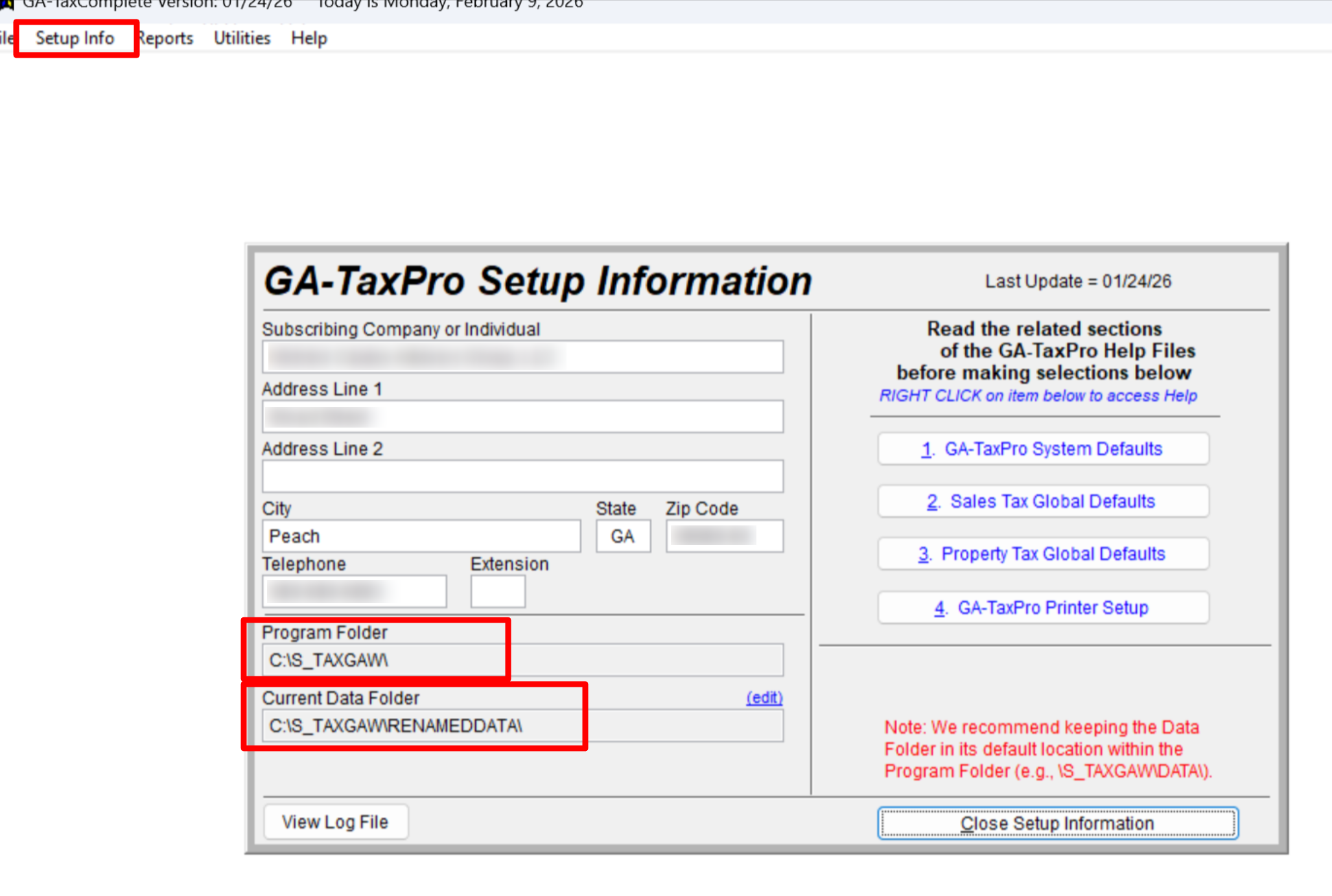
Step 1: Open Folder Properties
Open File Explorer and navigate to your Program Folder.
Right‑click the folder and choose Properties.
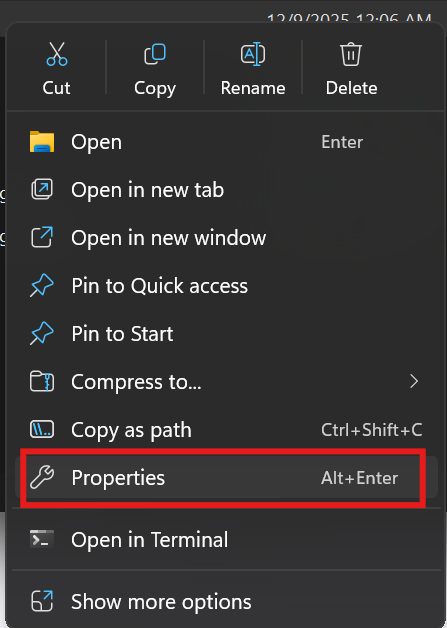
Step 2: Access the Security Tab
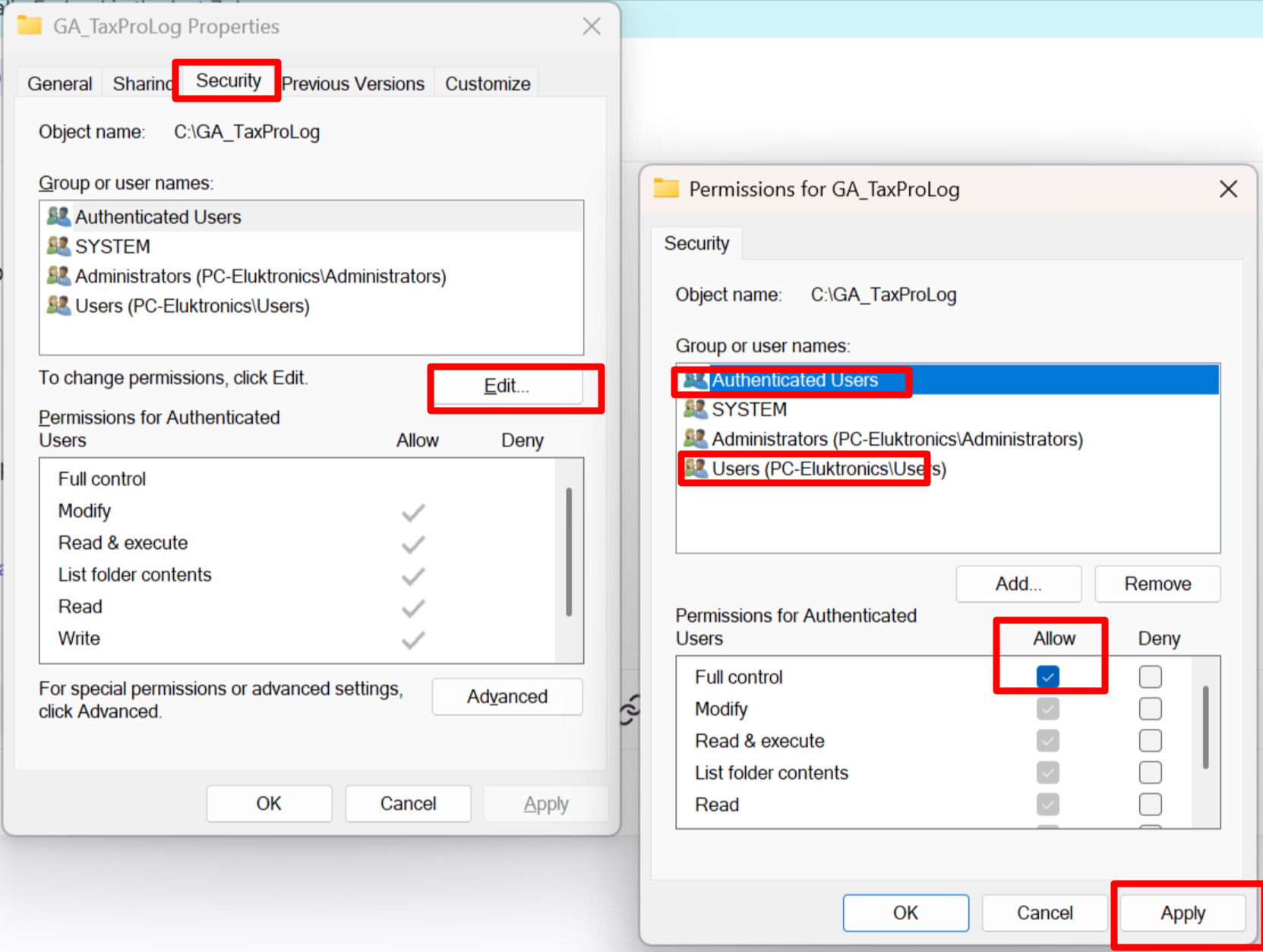
In the Properties window, select the Security tab.
Under Group or user names, you’ll see entries such as Authenticated Users, Users, Administrators, or other accounts that already have permissions for the folder.
Click Edit… in the Security tab to modify permissions.
In the new dialog, select the appropriate user or group, such as:
Authenticated Users
Users
A specific service account used by GA‑Taxpro
In the Permissions section, check Allow for Full control.
When Full control is enabled, all other basic permissions (Modify, Read & execute, List folder contents, Read, Write) are automatically included.
Click Apply, then OK to confirm and close both dialogs.
Step 3: Repeat for Data Folder
Repeat the same steps above to grant Full control for your Data Folder as well.
Once both folders have Full control permissions, you can re‑open GA‑Taxpro and continue using the application normally.