Import Property/Asset List from CSV
Edited
You can import a list of property or assets using a CSV file.
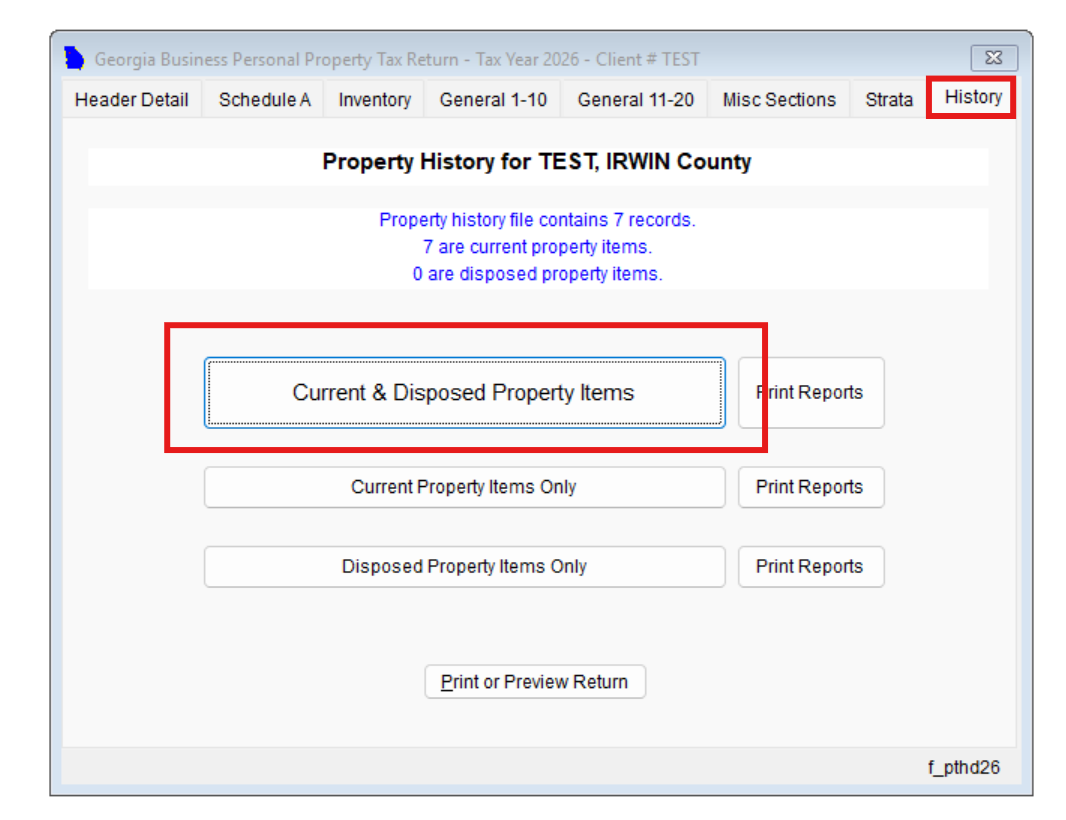
Step 1: Navigate to Property Items
Go to History > Current & Disposed Property Items.
Step 2: Open the Import Tool
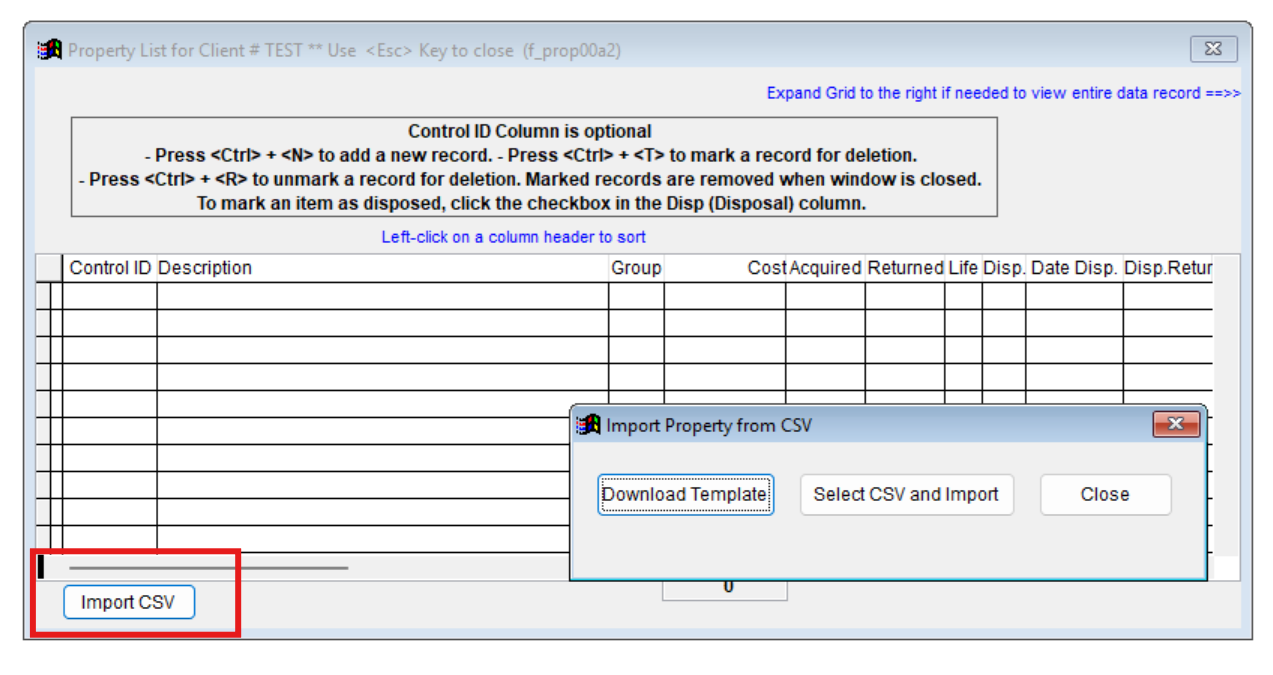
Click "Import CSV".
Step 3: Download the Template
Select "Download Template" to obtain the CSV template file.
Step 4: Prepare Your CSV File
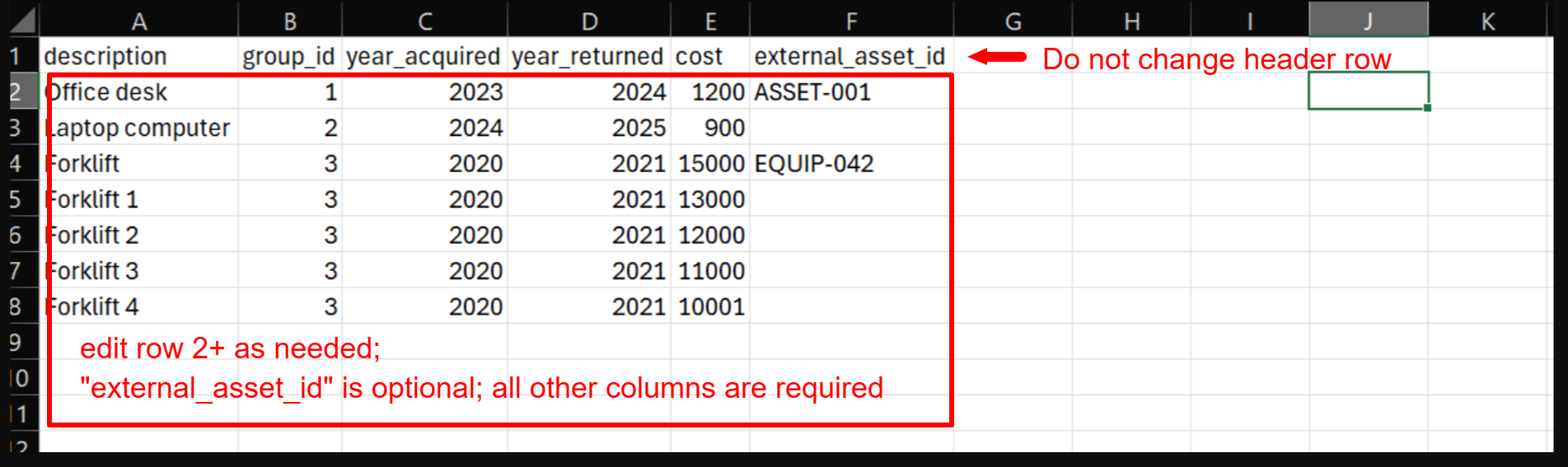
Format your property list so that it strictly matches the template structure.
The following fields are required: description, group_id, year_acquired, year_returned, cost.
The external_asset_id field is optional.
Do not change any header names.
Do not add or remove any columns in the header row.
Step 5: Select CSV and Import
Select your CSV file then import.
import
upload